Thursday, October 6, 2016

Purple Monkey w/ Red Hat & Hammer (500 Server Error)


500 Internal Server Error Sorry something went wrong. -It sure did! Don't worry though... This purple monkey with a red hat and a hammer is amusing enough to afford my forgiveness. While hacking away on the YouTube editor I got smacked with this loud red screen. I was shocked and amused at the same time. Here's the secret coded message it pumped out:

Saturday, August 18, 2012

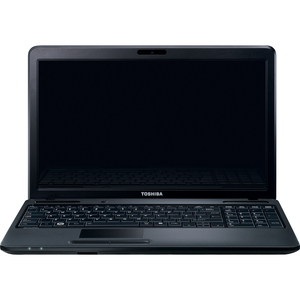
My New Toshiba AMD Notebook Rocks!


I finally broke down and bought a laptop. I was looking for something I could afford, without sacrificing performance. After a tiring search I finally came across the Toshiba Satellite with a 320GB hard drive and 3GB of RAM stock. I was stoked. This thing runs Windows 7 like it's ready for 8. Needless to say I am well please. Now I'm using it for school and  running the computer repair business all on the same machine. Guess it's time to ditch the tower. If you click the laptop here you can visit Toshibas website and check the specs yourself. From the Toshiba Website: Designed for great everyday performance, Satellite range products are affordable but serve up the power, features and portability that even the most demanding home users require. You can buy Satellite products through an extensive network of high street and online retailers.

Thursday, August 2, 2012

Dell XPS A2010 Plays a Good Game


The Customer reported not being able to use the cd drive on this all in one desktop. This usually doesn't present a problem since Windows can be loaded and installed on a USB flash drive. The program I use is 'Win to Flash' and takes about 10- 15 min to transfer from disk to USB. Unfortunately this a2010 Dell XPS does not have an available option in the BIOS to Boot from any kind of external device. The options are- hard drive, disk, or network. There is way to load the OS on the hard disk and install from there, I just haven't need to learn it yet. I decided to open the back and bypass the cd drive myself. This model looks impenetrable without a trace of a screw until you take a real good look underneath the screen. There's a screw on both sides that's completely camouflage.  With those 2 out the back cover slides up.

The computer was brought to me over a blue screen error. Most times reinstalling the OS corrects the problem. My problem was the installing kept hanging before displaying the available drives to choose from. Realizing this was probably a hardware issue, I connected to a new HD and still I'm still hanging. Bad RAM?? I pulled one of the two chips and BINGO! --it finally begins the installation. Out of curiosity I opened the customers disk drive to see why disks kept being spit back at me and JACK POT!  Apparently their kid fed a poker chip into the disk slot. On the customer's return I told the kid "You play and good game, next time keep your chips on the table."

Monday, June 4, 2012

Kinect Technology is Child's Play Compared to Leap


Leap claims to be 200 times more accurate than the Microsoft Kinect or your smart phone.  They are available for pre-sale for $69 set to be shipped late this year. The future of peripherals is here.


From their site: 

Say goodbye to your mouse and keyboard.

Leap represents an entirely new way to interact with your computers. It’s more accurate than a mouse, as reliable as a keyboard and more sensitive than a touchscreen.  For the first time, you can control a computer in three dimensions with your natural hand and finger movements.
This isn’t a game system that roughly maps your hand movements.  The Leap technology is 200 times more accurate than anything else on the market — at any price point. Just about the size of a flash drive, the Leap can distinguish your individual fingers and track your movements down to a 1/100th of a millimeter.
This is like day one of the mouse.  Except, no one needs an instruction manual for their hands.


Wednesday, May 23, 2012

The Penny Trick! Solves HP Black Screen No Video Output


This repair can garder from $50- $100 cash profit. After the initial $55 material cost any future work of this kind costs only a penny. So for one penny and about an hours work you can make up to a hundred dollars. Hence I call this the Penny Trick. 

HP made a big mistake on the DV9000 and DV6000 models. A year or more after purchasing on of these laptops the video output will go completely out. The LEDs and will light up showing the computer's on, but the sad screen will stay completely blank. Many shops will take the easy way on this one and replace the entire motherboard. It's unnecessary. Let's point the finger at the real problem child here, the GPU or Graphics Processor. When these laptops heat up the solider connecting the video chip to the board weakens and loses connection. An inadequate heat sink is the usual culprit. The same thing happens to the Xbox with the RROD or Red Ring of Death.


Items Needed:
  • A Digital Probe Thermometer ---$20
  • Thermal Compound                ---$5
  • Butane Torch                          ----$25
  • Aluminum Foil                        ----$1
  • Scotch tape                              ----$1
  • Small Screw Driver                 ----$1
  • A Penny                                  ---$0.01 


Okay before you go to town pulling the 50 some odd screws it's going to take to get the motherboard out I must note- be cautious to prevent ESD. Electrostatic Discharge or simply static shock could damage your board especially the RAM. If affordable buy a wrist strap and ground yourself. Other wise at least touch metal to ground yourself before you begin. Also I take no responsibility for these plans- Procede with Caution.

With that out of the way take your small screw drive and disassemble the laptop down to the motherboard. Take the heat sink off paying close attention to what chips it's covering. Definitely make certain to take off the processor and the RAM.  Of course remembering where every cable part goes, take notes if necessary. With the board out in front you'll need to identify where the GPU is. On most boards it will be close to the processor and most likely covered by the same heat sink. If in doubt look it up. 

Now cut a piece out of the foil about twice the size of the chip. You'll want this to be two layers if not three. Press this piece of foil against the chip to get a good indentation or imprint. Cut out that imprint so this will fit nicely around the chip. Now tape the outsides of the foil to keep it in place. This is done to cover the surrounding board from the flame.

Next turn on the digital probe and set it to fahrenheit. Tape the metal part of the probe directly behind the chip on the other side of the board. Since you may want to hold the board steady, use an oven or something similar to hold the side taped to the monitor.

Now comes the fun. Light up the torch. We're not trying to fry the board here. Only heat the GPU to a certain temperature to reconnect the existing solder under the chip. Similar to reballing except not taking the chip off. Bring the torch down to an acceptable level to heat the chip and not burn the surrounding components. Watch the temp and take it up to around 220f. The whole time keeping the flame circulating to even out the heat. Much hotter you'll burn the chip, any less the solder won't completely melt. Only keep it at that degree for a few seconds, then let it cool off. 

After the board's cooled off apply the thermal compound to the back of the chip and to the back of the processor. Now to ensure that heat doesn't cause this problem again. Place the penny on top of the video chip and replace the heat sink on top of that. While not absolutely necessary, this helps the heat dissipate off the chip and ensures this fix will last much longer. If it's to tight of a squeeze a copper shim works fine as well. Am I the only one that thinks it's funny to have a penny inside a laptop? Just to assist here's a vid with a similar fix:


Tuesday, May 15, 2012

How to Build a New Computer under $200

This article will present a brief tutorial explaining how to repair or build a Windows PC. More instruction will be added as time permits.
Bill of Materials:
  • Motherboard
  • Processor (CPU)
  • Power Supply (PSU)
  • PC Case/ Enclosure
  • Hard Drive (HD)
  • RAM
  • Monitor
  • Key Board & Mouse
  • Blank CD or DVD
  • 2 Power chords 
The most important thing here is choosing the components that will be compatible. A Motherboard is usually compatible to either one of the two dominant processor manufacturers- AMD or Intel. Pick the board for the CPU of your choice. If you're into gaming or visual effects, AMD caters to that market and leaves room for over clocking (speeding up the processor past original settings). Intel shoots for reliability and longitivtiy. It's war choose your side carefully.

Gathering Components:
New Egg is a great start down that path to a new build. They are also friendly on returns in case you mistakenly buy the wrong piece. For price comparisons you also check tigerdirect and mwave. You can save by finding a used Case from a broken or cheap computer on Craigslist, Ebay, thriftstore, or yard sale. The parts inside that will be most useful are the power supply (plug it in, if the LED in the back blinks it's usually dead, if it stays lit it's usually good), the CD/DVD drives (must have a DVD drive if you want to boot anything greater than XP), and the Hard Drive (which should have a minimum of 40 GB to run XP, and have the connection your setting up for whether it be IDE or SATA). These parts alone will shave at least a Benjamin off the price tag.

Now how does this have to do with repair? Simple. Windows being So vulnerable to virus leaves users to discard perfectly good computers. While hardware will eventually bad, usually the problem lies in the OS (operating system). If the PC will at least turn on and show any thing on the screen, most if not all components are working. If the RAM is bad it will indicate in the opening screen or by a series of audible beeps. You'll learn if the hard drive is bad by accessing the BIOS or attempting to install Windows.

Downloading Windows: 
First you need a torrent downloader. Those that have downloaded free music before might remember the days of Limewire, Frostwire, or even Napster. These were just user friendly torrent down-loaders. While there are many, I've used Azureus Vuse for years and found it to be the fastest and most reliable. Once you have this the world is yours in terms of media. Music, movies, and software all here FREE. With Windows downloaded you just saved yourself almost 200 USD. Now on to our library of torrent. There are many sites that supply links to torrent. Better yet one site to list them all. Torrentz has got to be the end all list of torrent. That with the power or Google or Toorgle, you can find anything. Be Careful. Install some trusty antivirus before shoveling through the trenches of torrent. Avast has kept my hands clean for some time. It should to the same for you.

Installing Windows:
First we need to access the BIOS. Usually the beginning screen  right when the PC turns on will display which key to hit to enter the BIOS options. If in doubt hit all the F keys, Escape, and Delete- has to be one of them right!? In the BIOS select Advance Options (it goes under different names, what you're looking for is the boot option- or where the computer will begin searching for an OS). Select the CD/DVD to be the primary boot, and the hard drive can be secondary. Hit F10 and save your settings. Now when the PC is reset it will read the disk with Windows and say "Press any key to boot from cd or dvd" with a black screen. The basic drivers will be installed, then you will be asked to select a drive to install the OS on. Choose your drive, delete all partitions, then do a quick format with NTFS (it's faster). From here it installation should be a breeze, self explanatory.

To assist in the build New Egg has a 3 part lengthy yet through instructional video. Enjoy.


Thursday, May 10, 2012

Diagnose and Replace a Dead PSU Power Supply Unit

One of the easiest parts to replace and one of the more lucrative is the power supply or PSU. It's also very easy problem to diagnose. A customer calls and explaind that their computer will not turn. If the computer shows any lights or anything on the screen then the problem is not the power supply. The only light that may be showing is a blinking LED on the power supply indicating it's broken. Otherwise the computer won't show any signs of life. Here in California I can easily charge any where from $60 to $75 for this repair including the part. Used power supplies are easy to find in old discarded PCs, at thrift stores, or on craigslist. 

The connections and size of the PSU vary, but are very similar and universal. The main connections you'll be looking at are:

  • 20 or a 24 pin ATX connector on the board. 
  • 4 Pin (square) 12V connection
  • 4 Pin Standard 5V/12V drive connection
  • Sata connection (newer computers)


Some older PSUs may not have the connections yours requires. Luckily the wires are normally color coded and can be cut and rewired. An example is the 4 pin (square) connection. Not all PSUs have these. Cut the ATX connection off the old broken unit. Since there are 4 wires twist the 2 yellows together and the 2 black ones together. Grab an extra 'Standard 4 Pin' power connection and shove the yellow exposed wire securely in the slot with the yellow wire leading up to it and the same for black and then tape it up. This way you won't need to go hunting for one with this ATX connection. As always be safe when handling the PSU. The capacitors inside can pack a punch!

Sunday, January 8, 2012

Discolored Display Equals Loose LCD Cable


A customer brought a HP G62 laptop with a video issue. It was displaying a light blue tone on every background where it should have been white. Also the pixels were randomly turning  on and off.

The funky discoloring initially looked like it could have been a virus. Knowing about the problems that plague the DV6000 and DV9000 HP laptops, it was possibly a video issue.

I disassembled it down to the board and discovered there wasn't a visible GPU. The processor has two dies on the chip to possibly indicated integrated graphics.

Perplexed I put it all back together and discovered the problem has fixed itself. The cable coming from the LCD screen was apparently loose from the board and was causing the glitch.  

Saturday, December 24, 2011

Frozen Cursor on Dell Vostro 1520 Laptop

Dell apparently issued a bad batch of AC adapters for Vostro 1500 laptops. After a customer brought it to my attention that the track pad wasn't moving the cursor on screen. Plugging a mouse into the USB will release the cursor to move freely about the screen. This proves it's not a virus or a windows glitch. This Forum provided the answer to the problem. Unfortunately it doesn't look like Dell will reimburse or send you a new one. Fortunately there's always Google Shopping. 

Apple Starts Independent Approach to Accessory Purchase

Next time you go to the Apple retail store, take a look over near the phone cases. You may notice a customer holding some merchandise from their wall of accessories, pull out an iPhone, and snap a quick picture before walking out with it. 
Before you decide to run and flag the security, you might wish to be briefed on the procedure called personal pick up. Now at Apple, instead of pulling out cash or card, you can simply pay by phone as you would any App purchase. 

  • First download the Apple Store App.
  • Snap a picture of the UPC of the product you wish to buy.
  • Provide the three digit security code on the back of the credit card used to purchase iTunes.
  • Confirm the purchase.
  • You will be emailed a receipt.
  • The store is immediately updated verifying your payment and prohibiting the guard from tackling you on your way out.
    Keep the original packaging and Apple will replace or refund any of these items no questions asked.


    This leads one to ask- Is this the future of retail shopping? If so what store will be next? Is the Apple store employee that informed me of this procedure aware that her job is at stake?
    What do you think?
  • Friday, December 16, 2011

    Installing RAM in an iMac 2.4GHZ Core 2 Duo

    In an effort to upgrade my iMac to play Sky Rim, I made a dash to Fry's the local electronics sotre here in California. I bought a 4 GB SODIMM 667mhz stick of RAM. It put me back about $67 after tax. Installed and booted no problem. Then hours later I noticed my browser dumping my pages every 5-10 minutes and the OS completely freezing up so it needed to be rebooted. Clicking the Apple at the top left and selecting About this Mac, it show there to be 6gb total installed. The other slot already had a 2gb chip. I decided to pull my 4gb and replace it with another 2gb. Reset the computer and the OS has been running smoothly ever since.  Which makes me ask, Is this a software or firmware restriction of RAM capacity?  Suppose the only other future upgrade would be replacing the hard drive disk for a solid state drive. Interesting side note- there's a drawing beneath the pedestal that illustrates the procedure for upgrading or replacing your RAM just in case you forgot.

    Tuesday, November 29, 2011

    Dodge Havoc and Destroy Dust Bunnies

    Before
    After


    Want an easy way to make your system significantly slow and sluggish? Run it on the floor in a room full of dust for a year and let it slowly absorb every particle. Your PC is not a vacuum. If your CPU heat sink looks like this, I should turn you in for attempted arson. Please excuse the sarcasm. Just take note: The computer I pulled this from had a bad stick of RAM preventing it from booting. The RAM on this particular model Dell Inspiron 530s like many others sits next to the CPU. Heat dammage? It's likely. I identified the problem from 4 short beeps from the BIOS on post. I used an air can to blow the dust out and a vacuum next by to catch it. An old toothbrush to loosen the remaining dust in the corners, and one last vacuuming to finish the job.

    Friday, July 29, 2011

    Tux Computer Case with Embedded Linux Kernel

    This is for all you true nerds out there. Not the fake ones that think wearing glasses, reading Harry Potter and play W.O.W. only count. More the ones that know the hundredth decimal of pi. Here for your viewing pleasure is Tux the penguin computer case in pico form factor. Taken from the site -"TUX Case is 16.9 cm high (6.66 inches) and can house a FOX Board LX plus an add-on board. The rear side is already holed for the FOX Board LX connectors (Ethernet, 2xUSB, DC input)." This cute little case can be found here for a decent price: http://www.skpang.co.uk/catalog/tux-case-for-fox-board-p-207.html


    Thursday, May 26, 2011

    LCDs and DC Jacks, Two Lucrative Laptop Repairs

    Two of the most common problems that customers bring to repair other that viruses are damaged LCDs and broken DC Jacks. Here in Southern California I can charge upwards of $145 for a installed replacement LCD and $95 for an installed DC Jack. I usually jump on Google Shopping,  eBay, or locally on Craigslist for the best part prices.  Both issues are easy to diagnose.
    A cracked LCD will show the tell tale black 'ink blot' when held at an angle to the light. The lights and sounds on the laptop will work and the screen may even be very dimly lit but will display nothing. Replacement is as easy, but varies by model. Remove the bezel (the plastic frame around the LCD) and the 2 or 3 cables connecting it to the board. If your unsure of how to disassemble the laptop there are a plethora of videos across Youtube with specific instructions. Only tools needed are a small philips and flathead  screwdrivers.
    If the laptop is not charging (look for the indicating led) or will not turn on, the problem could be the jack. The problem is obvious when the jack is jammed inside or moves freely when plugged into the AC adapter. DC Jack repair involves removing the motherboard. There's about 25-40 screws to take out holding the laptop together and the board inside. Be alert and remember where the 10 or so wire cables connections were pulled from. Grab the jack with a pair of pliers and gently pull side to side as you heat the solder on each pin connecting it to the board. Use a desoldering tool the suck out the excess solder left over. Seat the new jack flat against the board and solder it secure.

    Thursday, May 19, 2011

    Set the Throttle to Light Speed with a 1000 Core Processor

    Just when you thought the computer you built last week with a six core i7 was beast, Scientists at the University of Glasgow have to one up you. They've used a new technique called Field Programmable Gate Array (FPGA) to make programable CPU cores. The cores can be assigned to individual tasks with their own allotted memory bank. Using this technology these Scottish scientists have reached speeds 20x that of todays fastest processor. Dr Vanderbauwhede hopes to present his research at the International Symposium on Applied Reconfigurable Computing in March next year.


    Saturday, April 23, 2011

    A Computer Repair Man's Rant

    Computers in general are volatile systems. One minute they're crunching data by the gigabyte the next they've run across a script error and will be shut down immediately. Of course all computers are not built the same. Some larger companies, HP, Dell, Acer, Gateway, Sony, to name a few, offer great support in terms of drivers and help information. They protect their reputation by building the systems that last longer. Alas there will always be a market for cheaper goods. Enter the clones, and after market China products. Don't get me wrong, I'm lovin' the great price, it's the price you have to pay later down the line that will kill you.
    Recently a customer from Rialto Ca brought a computer to my office that was constantly restarting. It didn't have a prayer. At first Windows would load and run for a half an hour then restart. Hours Later it began restarting every five seconds. I did suspect it may be the power supply. Switched it out, no difference. Exchanged the board and bingo! No restart. The damaged board was an ECS 'elite groups'. Funny cause I had that same brand mobo a  few years ago with about the same problem.
    Now for my rant. The customer brought a second computer to my office and figured I could work with the extra parts. The board was a Soyo Dragon 2. The computer flashes a screen displaying Soyo.com when beginning to  boot. I looked it up the site is non-existant. So much for finding the drivers there. The crazy part about these two computers was that I was able to pull the SATA HDD out of the ECS and run the pre-existing copy of Windows in the Dragon 2! It actually started accidentally as I was about to load Windows XP from CD. The only problem was of course it needed the different drivers. In cases like these I google it, and check the forums and cnet download.com. It took some time. Conclusion- spend a few extra bucks and avoid custom boards. You'll save you're self a lot of hassle down the line. Once you have the right network driver working you're golden. From there it's a breeze. Windows updates, Anti-virus loaded. Having the internet is really the only reason they want their computer fixed in the first place right!?

    Monday, April 18, 2011

    The Software Toolkit of a Computer Repair Man

    There are a series of different maneuvers and software applications that a computer tech needs to carry with him inorder to be prepared with going out to visit a job.
    Tool box Items of Computer Repair:


  • USB jump drive, or External drive (to store data temporarily, or load the OS faster than a CD) 


  • OS disks (Microsoft Windows XP, Vista, or 7)


  • Anti-Virus (Dr. Spyware, Avira, MS Security Essentials, Malware bytes, etc.)


  • Ophcrack (boots from linux kernel and cracks lost Log In passwords)


  • Internet Connection (Drivers for wireless, network, sound, video, printers, etc.)


  • Si Sandra (to search and identify components to know what drivers to look for)


  • Phone (customer contact, possible help from a friend in a pinch)


  • Do you know of other essential computer repair tools?

    Sunday, April 17, 2011

    Blue Screen Error Proves MS Disk the Culprit

    I received a custom built computer from customer with the Windows install disk still in the drive. Along with the computer he also handed me the CD plastic with the original serial. Figuring it was easier to just start the install from the disk that was already in the drive, I went ahead and booted from the CD. It would load for less than a minute before showing a blue screen with an error: "0x0000007E (0xc0000005, 0xf748E0BF, 0xF78DA208, 0xF78D9F08). Shrug possibly a random glitch. Two tries later I started going through the BIOS and hardware to find the problem. The RAM chip was installed in the second slot away from the CPU. Switched it over to the first slot to receive the same error.
    When I first started the computer it wouldn't recognize my USB mouse or keyboard. Using the old school mouse connection allowed me to at least click the user name to try to enter Windows. It wouldn't load at all, just display a solid blue screen no text. The OS may have some how been loaded from this broken disk only to support this broken system. Problem Solved: Finally ejecting this disk that came with the computer and inserting my own, the system loaded. Inspecting this faulty disk I found a small yet deep scratch in the center right where the data begins.

    Friday, April 15, 2011

    Gateway M series Laptop Error 02FA: Main Fan Error!!

    "Error 02FA: Main Fan Error !! !! Please turn off system and check your CPU fan !!"
     The fan on the Gateway M series laptop I was fixing was spinning up immediately the second after rebooting, then stoping cold. Since the fan did spin when the computer was turned on it was obviously still good. I flipped the laptop over removed the one screw and plastic panel covering the CPU fan and RAM. Removed and replaced the RAM, and it solved the problem. I received the suggestion to start it without memory installed and see if the behavior of fan goes back to normal. (computers do this when no memory is installed). 

    Sunday, March 27, 2011

    Fire? Water?? Data Withstands the Elements with IoSafe SoloPRO Backup Drive


    Has anyone ever asked you: What's the first thing you're going to save in case there's a fire? As thoughts of family and pets are hopefully are the first to race though your head, your computer might just be second on that list. Think of all the time you've spent working on that excel file, or building your dream house out on Auto-cad. What about all the music downloaded before Limewire went down. On top of that the thousands of pics taken on your iPhone, but never uploaded to the cloud. Now your precious files can be one of the last items on the list of things to risk your life for. Introducing the IoSafe SoloPro waterproof, fireproof back up hard drive. With a 2TB max capacity, the SoloPRO is fireproof up the 1550 degrees Fahrenheit, and waterproof for 72 hours in 10' of water. Weighing in at 15 pounds with it's inches thick ceramic case, and one year of data recovery service included, Fort Knox is wondering where to get one. So when the next the nuclear holocaust hits your neighborhood, you can be sure as all hell fire that all your downloaded torrent and other unmentionables will be waiting peacefully inside it's silver plastic waterproof lining waiting to be opened on a computer that is more fortunate than the last.